
Shop Display
How wishlist hearts appear on product cards, grid vs list views, and display customisation.
The whole point of a wishlist is making it effortless to save things. FCHub Wishlist adds heart icons directly to your product cards — no extra clicks, no separate page, no "find the tiny link somewhere under the description".
Heart Icons on Product Cards
When enabled, every product card in your shop gets a heart overlay in the top-right corner. Empty heart means "not wishlisted". Red heart means "saved". One click toggles between the two.
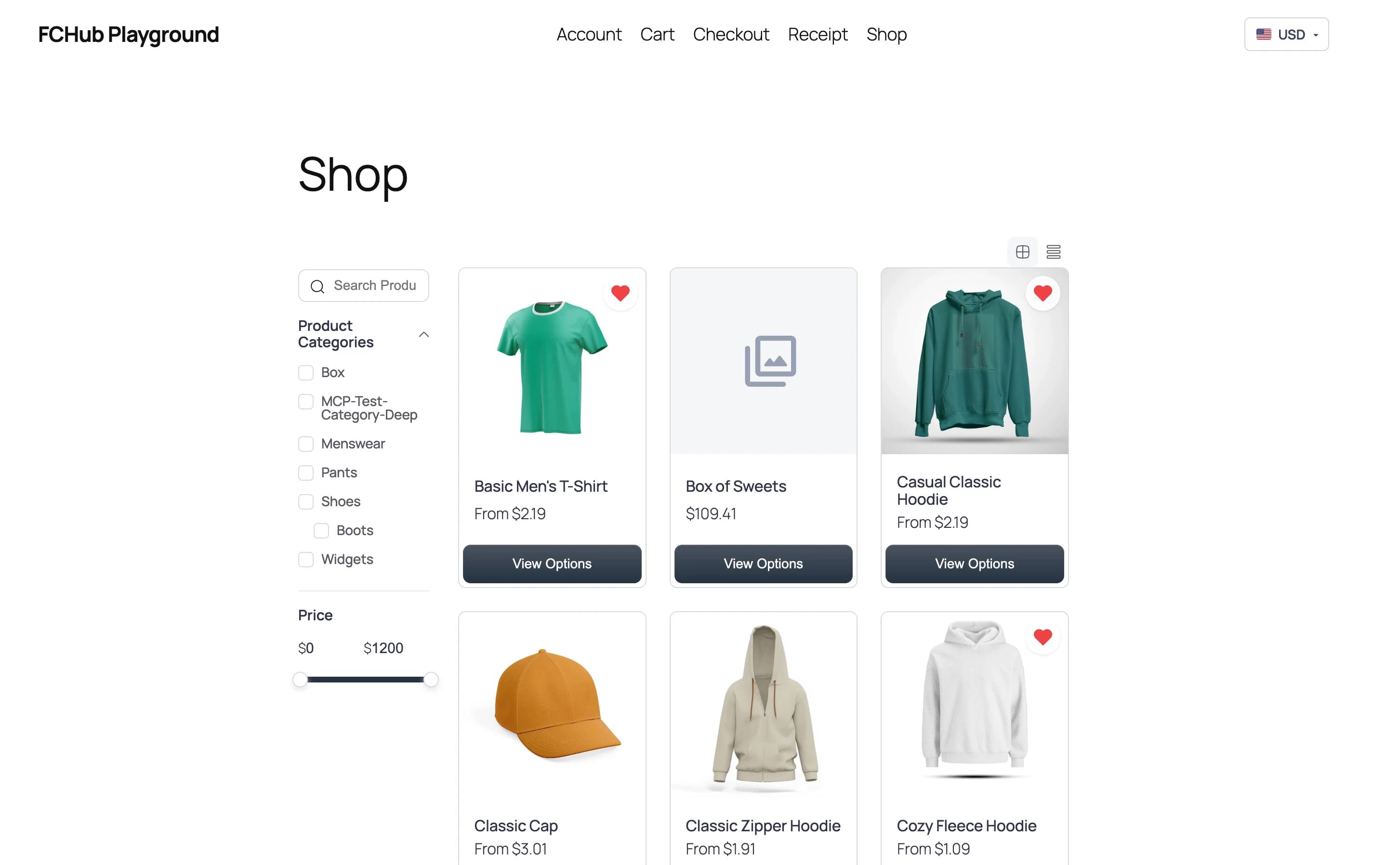
This works everywhere FluentCart renders product cards — the main shop page, category pages, search results, and any shortcode-powered product grid.
Grid and List Views
FluentCart's shop supports two layout modes — grid (cards) and list (rows). The heart icon adapts to both:
- Grid view: Heart appears as an overlay icon in the top-right corner of the product image
- List view: Heart appears inline with the product details
Switching between views preserves the wishlist state. If you hearted something in grid view, it's still hearted when you switch to list view.
Single Product Page
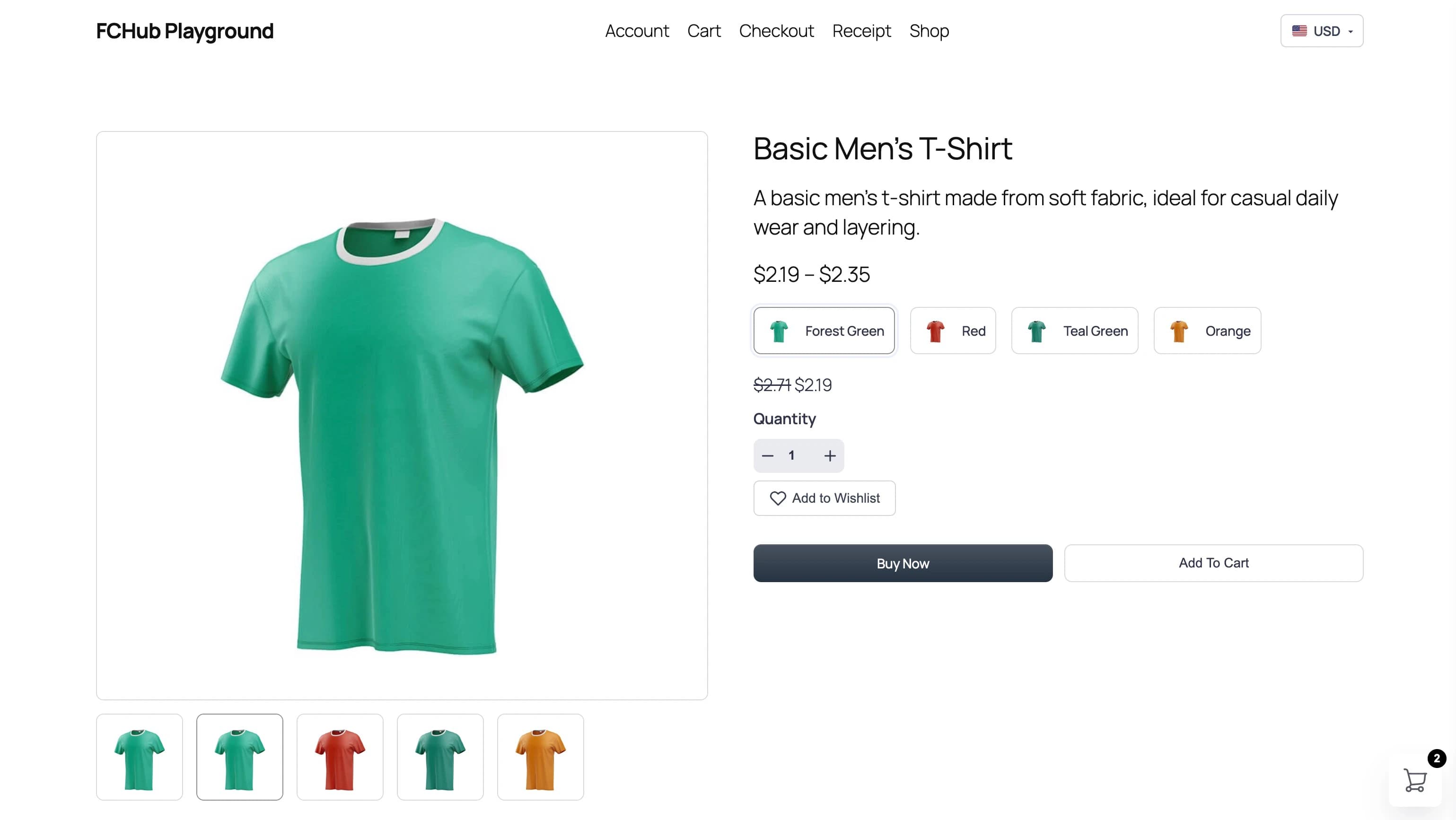
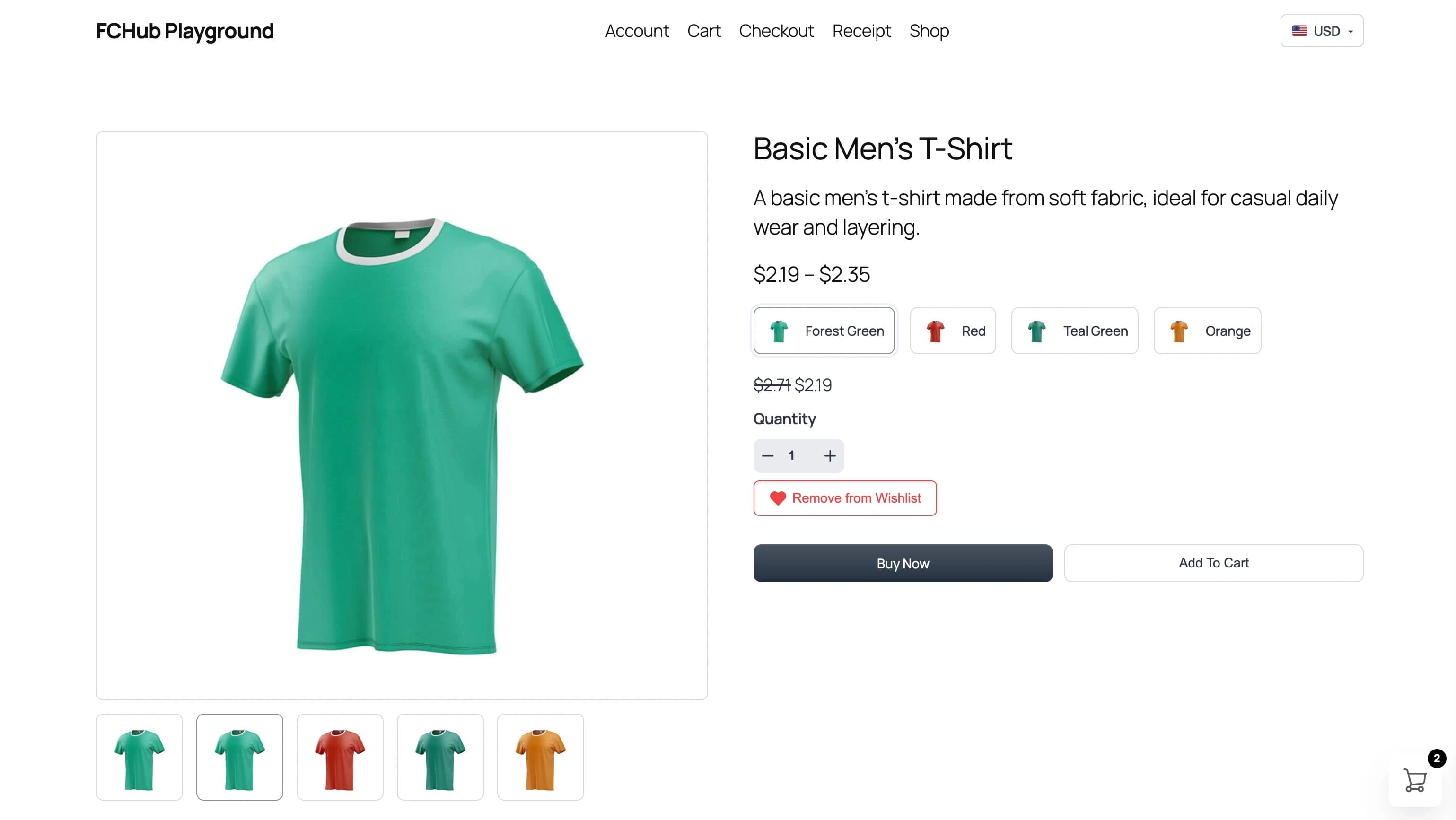
On single product pages, the wishlist button shows below the quantity selector and above the Buy Now / Add to Cart buttons. It uses the text you configured in Settings > Wishlist > Display.
When the product isn't in the wishlist, visitors see an empty heart with "Add to Wishlist":
Click it and the button switches to a filled red heart with "Remove from Wishlist":
The button text and visibility are both configurable. If you don't want a button on single product pages (maybe you only want the heart overlay on cards), just toggle it off in display settings.
Guests vs Logged-In
- Logged-in customers: Hearts are synced to their account. Red hearts persist across devices (as long as they're logged in).
- Guests: Hearts are stored in a browser cookie. They persist on the same browser for up to 30 days (configurable). If the guest registers or logs in, the cookie wishlist merges with their account.
No visual difference between the two — the heart looks and behaves exactly the same. The only difference is where the data lives.