
My Account
The customer-facing wishlist page inside the FluentCart portal. View saved items, add to cart, or clear the lot.
Logged-in customers get a dedicated "My Wishlist" tab in their FluentCart account portal. This is where they manage everything they've saved.
What Customers See
The wishlist page shows all saved items in a clean list:
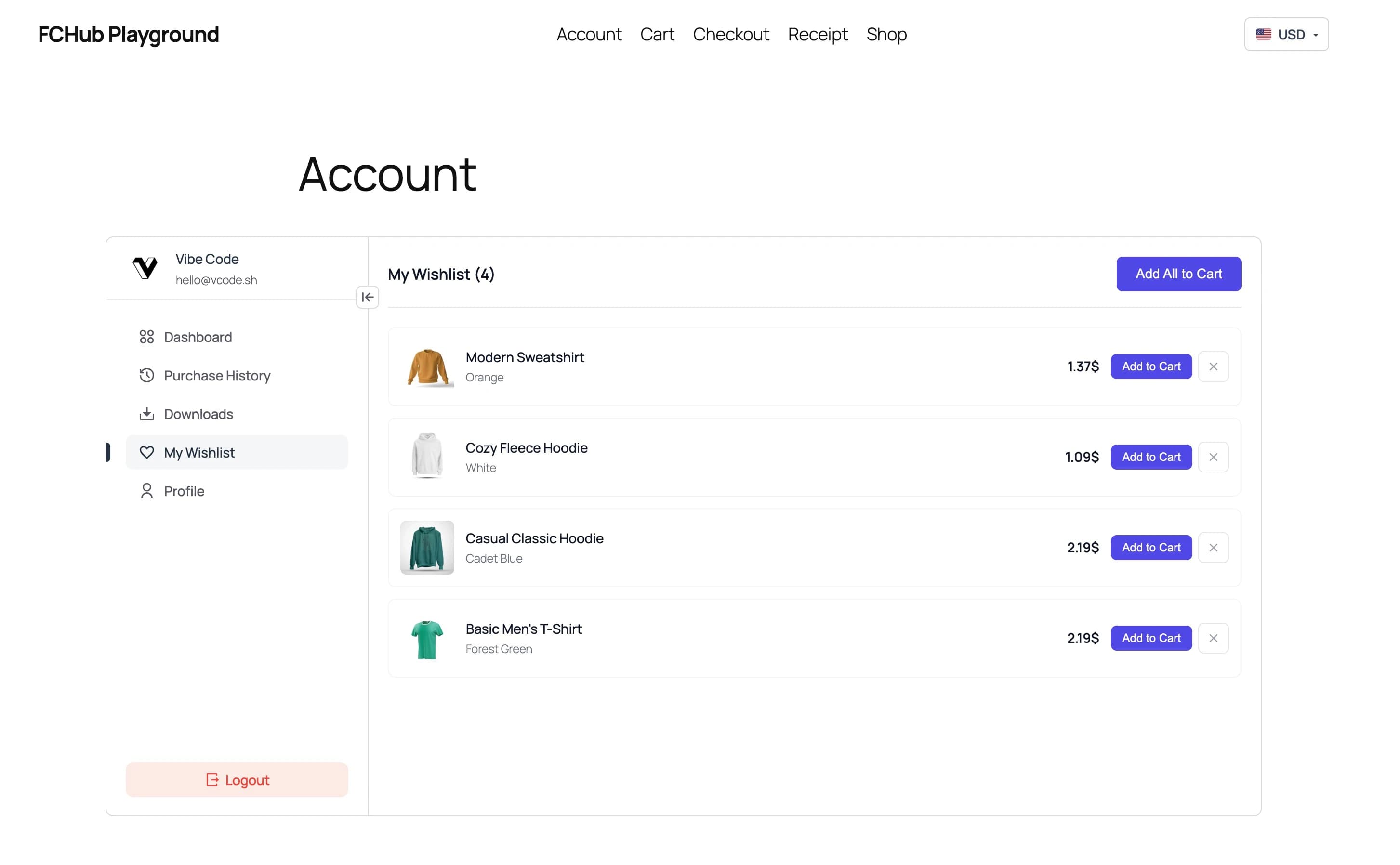
Each item displays:
- Product image — thumbnail of the saved product
- Product name — with variant info (colour, size, etc.) if applicable
- Price — current price, updated in real-time (if you're running Multi-Currency, it converts automatically)
- Add to Cart — adds that single item to the cart
- Remove (x) — removes the item from the wishlist
Add All to Cart
The big purple button at the top. One click, entire wishlist goes into the cart. For customers who saved five things over the past month and finally decided to treat themselves.
If "Auto-remove Purchased Items" is enabled in settings, bought items disappear from the wishlist after the order is paid. No manual cleanup needed.
Where It Lives
The "My Wishlist" tab appears automatically in the FluentCart customer portal sidebar, right alongside Dashboard, Purchase History, Downloads, and Profile. No shortcodes to add, no pages to create — it's just there.
The tab shows the heart icon and a count of saved items. If the wishlist is empty, the page shows a friendly "nothing saved yet" message with a link back to the shop.
Guest Visitors
Guests don't have an account portal, so they don't see this page. Their wishlist lives in a cookie and shows via the heart icons on product cards. Once they register or log in, the cookie wishlist merges into their account and the My Wishlist tab appears.