
Currency Switcher
A polished dropdown with flag icons, keyboard navigation, style presets, and both block and shortcode support.
The currency switcher is how your visitors pick their currency. Not a sad native browser dropdown — a proper custom widget with flag icons, keyboard navigation, multiple size modes, style presets, and a little freshness badge that says "yes, these rates are current." It now ships as both a Gutenberg block and a shortcode, so it works in classic themes, block themes, and Full Site Editing layouts.
Currencies appear in the order you've set in Settings → Currencies. Drag them to rearrange.
Add It to Your Site
Gutenberg Block
Open the block inserter and search for Currency Switcher. Add it to:
- pages and posts
- headers and footers in the Site Editor
- template parts
- synced patterns
- sidebars or utility rows built with blocks
If you just want a fast sandbox for testing, insert the Currency Showcase pattern first and work from there.
The block supports:
- optional label text
- label placement before, after, above, or below the switcher
- trigger visibility toggles for flag, code, symbol, and currency name
- dropdown visibility toggles for flags, codes, symbols, names, and active checkmark
- optional rate line and checkout context note inside the dropdown footer
- small, medium, and large trigger sizes
- auto or full-width layout
- start or end dropdown alignment
- dropdown opening up or down
- style presets: Default, Pill, Minimal, Subtle, Glass, and Contrast
Editor preview now uses your configured currency list and the configured default display currency, instead of always pretending the first currency in the list is active.
Shortcode
[fchub_currency_switcher]The shortcode is still fully supported for classic themes, widget areas, PHP templates, or legacy content. Existing installs do not need to migrate anything.
Optional shortcode attributes:
[fchub_currency_switcher label="Select currency" align="right" show_symbol="yes" show_option_symbols="yes" dropdown_direction="up" size="lg"]Supported attributes:
Layout
| Attribute | Values | Default |
|---|---|---|
label | any text | (none) |
label_position | before, after, above, below | before |
align | left, center, right | left |
size | sm, md, lg | md |
width_mode | auto, full | auto |
dropdown_position | start, end | start |
dropdown_direction | down, up | down |
Trigger elements
| Attribute | Values | Default |
|---|---|---|
show_flag | yes / no | yes |
show_code | yes / no | yes |
show_symbol | yes / no | no |
show_name | yes / no | no |
Dropdown options
| Attribute | Values | Default |
|---|---|---|
show_option_flags | yes / no | yes |
show_option_codes | yes / no | yes |
show_option_symbols | yes / no | no |
show_option_names | yes / no | yes |
show_active_indicator | yes / no | yes |
Footer context
| Attribute | Values | Default |
|---|---|---|
show_rate_badge | yes / no | yes |
show_rate_value | yes / no | no |
show_context_note | yes / no | no |
If the plugin is disabled or you haven't added any currencies yet, both the block and the shortcode output nothing. No broken markup, no empty boxes.
You can also place it multiple times on the same page — header and footer, for example. Each instance works independently.
How It Looks
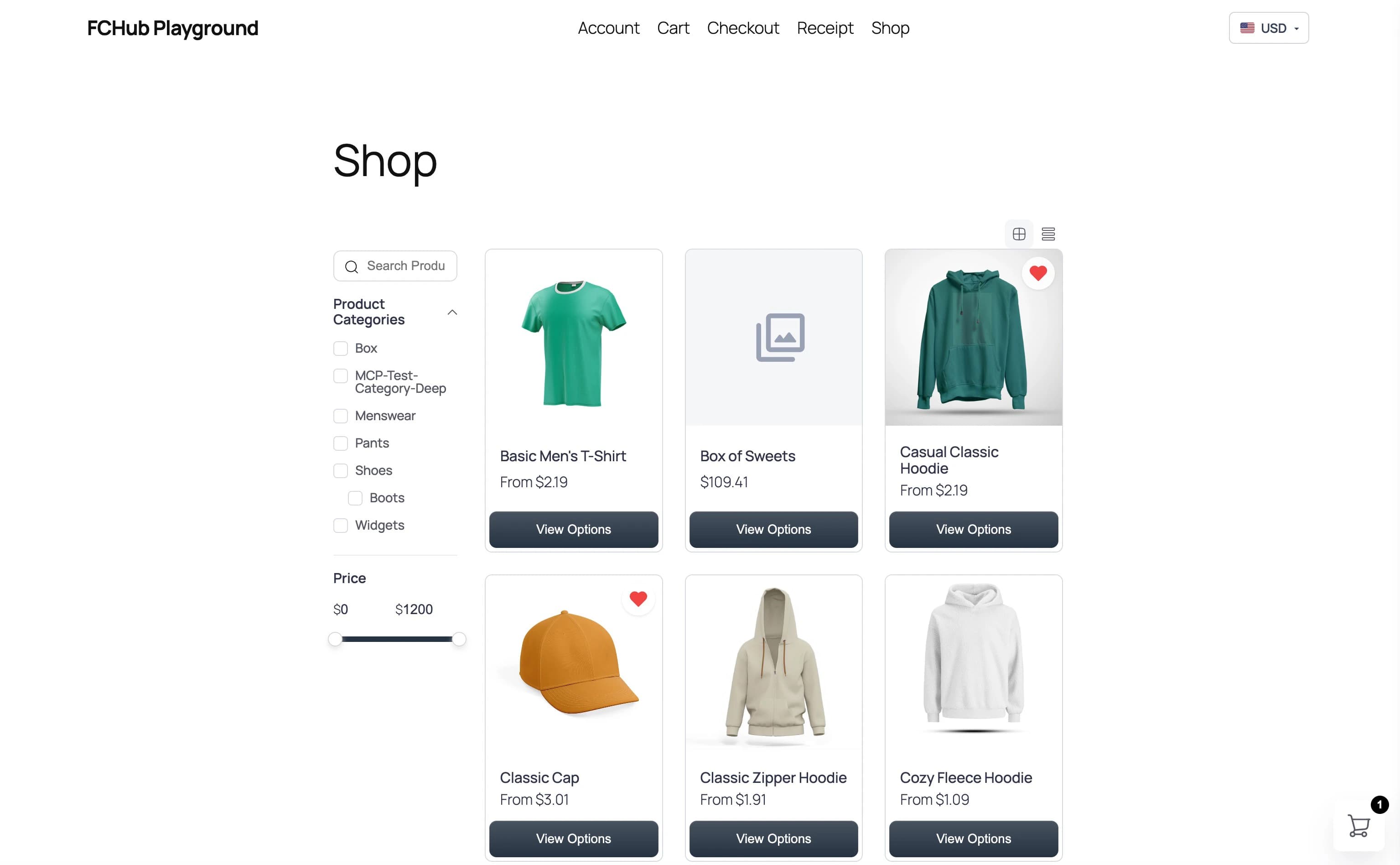
When closed, the switcher sits as a compact button showing the visitor's current currency with its flag:
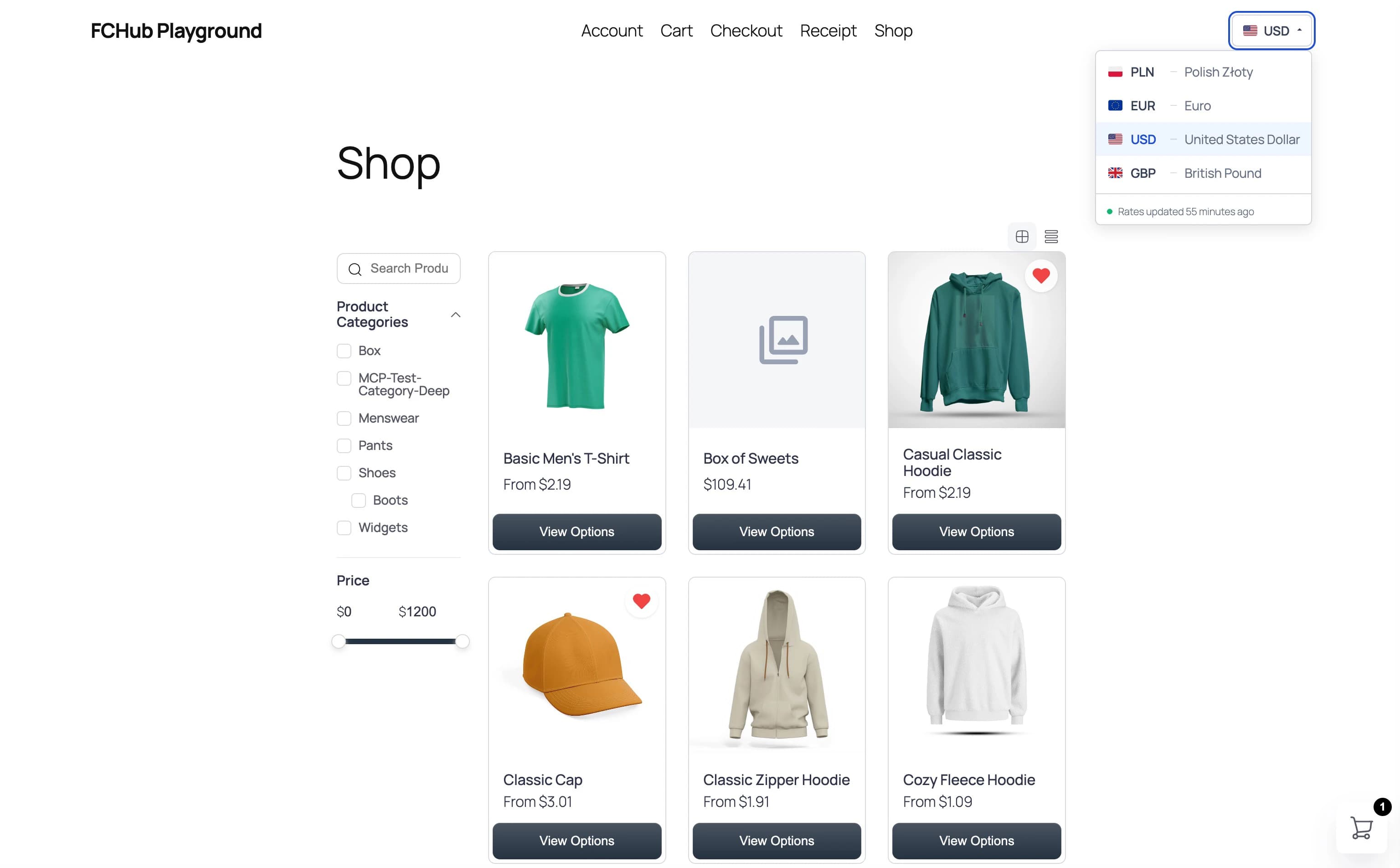
Click it, and a dropdown opens with every currency you've configured — each with its flag, code, and full name:
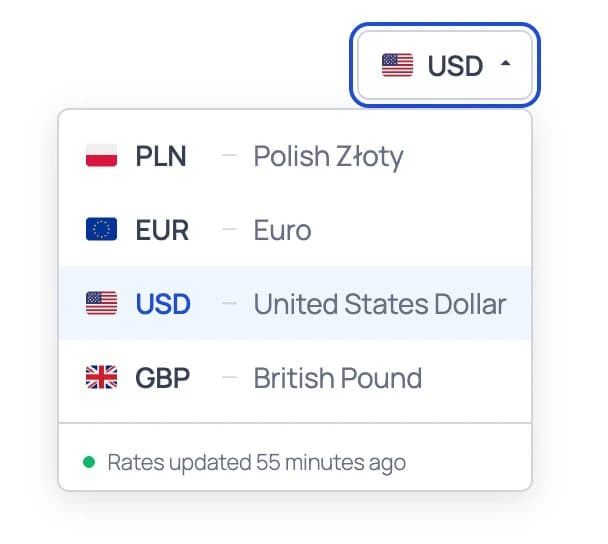
The active currency is highlighted in blue. At the bottom, a rate freshness badge tells visitors when rates were last updated — green dot means fresh, red dot means stale:
What Happens When Someone Switches
Visitor clicks a currency
The button dims slightly to show something's happening.
Preference is saved
Their choice is remembered in a browser cookie and matching local-storage fallback for the configured lifetime (90 days by default). If they're logged in, it is also saved to their account. No need to pick again next time.
Prices change on the spot
No reload and no waiting: the browser already holds every rate the store offers, so product cards, cart totals and checkout switch together the moment you choose.
Block Style Presets
The block includes six built-in visual presets:
- Default — neutral, close to the classic switcher look
- Pill — fully rounded trigger, good for headers and utility bars
- Minimal — lower visual weight, lighter borders, cleaner dropdown
- Subtle — softer background and gentler contrast
- Glass — translucent trigger and dropdown with blur, good for layered headers
- Contrast — dark high-contrast preset for bold headers, utility bars, or darker brand accents
Use presets for overall appearance, then use the block settings for content and layout. That keeps the editor flexible without turning the inspector into a control panel from a fighter jet.
Advanced Display Controls
The switcher now lets you tune the trigger and the dropdown independently.
Examples:
- compact header mode: flag + code, no label, no badge
- more descriptive footer mode: stacked label, code + symbol + name
- minimalist utility bar: name only in trigger, symbols only in dropdown
- dense mobile row: small size, full width, dropdown opening upward
That separation matters. The trigger is about what the visitor sees before opening it. The dropdown is about how much context they need to make the right choice.
Smart Dropdown Fit
On the frontend, the dropdown now tries to stay inside the viewport instead of blindly trusting the preferred side when there isn't enough room. It still respects your configured alignment and direction as the first choice, but will clamp or flip when the available space says "absolutely not."
Rate Freshness Badge
The little footer inside the dropdown that reads "Rates updated 2 hours ago" with a coloured dot.
- Green dot — rates are fresh, everything's current
- Red dot — rates haven't been updated in a while
You can toggle this on or off in the Checkout settings. It's a small touch, but it builds trust — visitors can see that the converted prices aren't based on exchange rates from three months ago.
Keyboard Navigation
The switcher is fully keyboard-accessible — you can navigate the whole thing without touching a mouse:
| Key | What It Does |
|---|---|
| Enter or Space | Opens the dropdown, or selects the focused currency |
| Arrow Down / Up | Moves through the currency list |
| Home / End | Jumps to the first or last currency |
| Escape | Closes the dropdown |
| Tab | Closes the dropdown and moves focus along naturally |
No JavaScript? No Problem
If a visitor has JavaScript disabled (rare, but it happens), they get a plain fallback form with a native <select> and submit button. Same currencies, same result, just less pretty. The preference is still saved when possible, so the site does not fall apart the moment JavaScript takes the day off.
Matching Your Theme
The switcher ships with clean, neutral styling that works with most themes out of the box. If you need to tweak colours, border radius, or shadow to match your brand — see the CSS custom properties reference in the Developer Reference.
In block themes, the block can also live comfortably inside template parts and layout containers without resorting to a shortcode block, which is the entire point of living in the present.