
Checkout & Price Conversion
How every price on your store converts automatically, what your customers see at checkout, and how orders remember what currency was shown.
Three things happen when someone browses your store in a different currency: the page resolves and converts as one currency, checkout tells them what they will actually be charged, and the order records what they saw. No surprises, no confused customers emailing you at 2am.
Automatic Price Conversion
Selecting a currency converts every price on the page immediately, without a reload and without a request — the page already carries every rate the store offers. Product cards, "From" prices, compare prices, cart totals and pricing tables all move together, and later cart, quantity and variant changes are converted the same way.
This works across your entire FluentCart storefront:
- Product pages — individual prices, variant prices, compare/strikethrough prices
- Shop page — all product cards
- Cart — item prices, line totals, cart total
- Checkout — order summary, subtotal, estimated total
- Pricing tables — variant prices and compare prices
How It Handles Edge Cases
| Scenario | What Happens |
|---|---|
| Shop price filter | Deliberately stays in the base currency, sign included. FluentCart's filter slider and server both speak base-currency amounts through the very same inputs, so converting them corrupted every filtered query — the honest base filter is the one that returns correct results |
| Price ranges | Both sides convert independently — $11.00 – $12.30 becomes €10.14 – €11.34 |
| "From" prices | The prefix stays, the number converts — From $9.99 becomes From €9.21 |
| Strikethrough prices | The old price stays crossed out, both old and new amounts convert |
| Totals | Cart and checkout totals get an ≈ prefix — a gentle signal that this is an approximation |
| Same currency | If the visitor is already in your base currency, nothing happens. No unnecessary work. |
The conversion also picks up dynamic changes — when someone adds an item to cart, opens the cart drawer, or updates quantities, the new prices convert automatically. No stale numbers hanging around.
Checkout Disclosure
This is the notice that tells your customer the truth: "You're looking at prices in USD, but you'll be charged in PLN." It sits right below the order summary so they see it before paying.
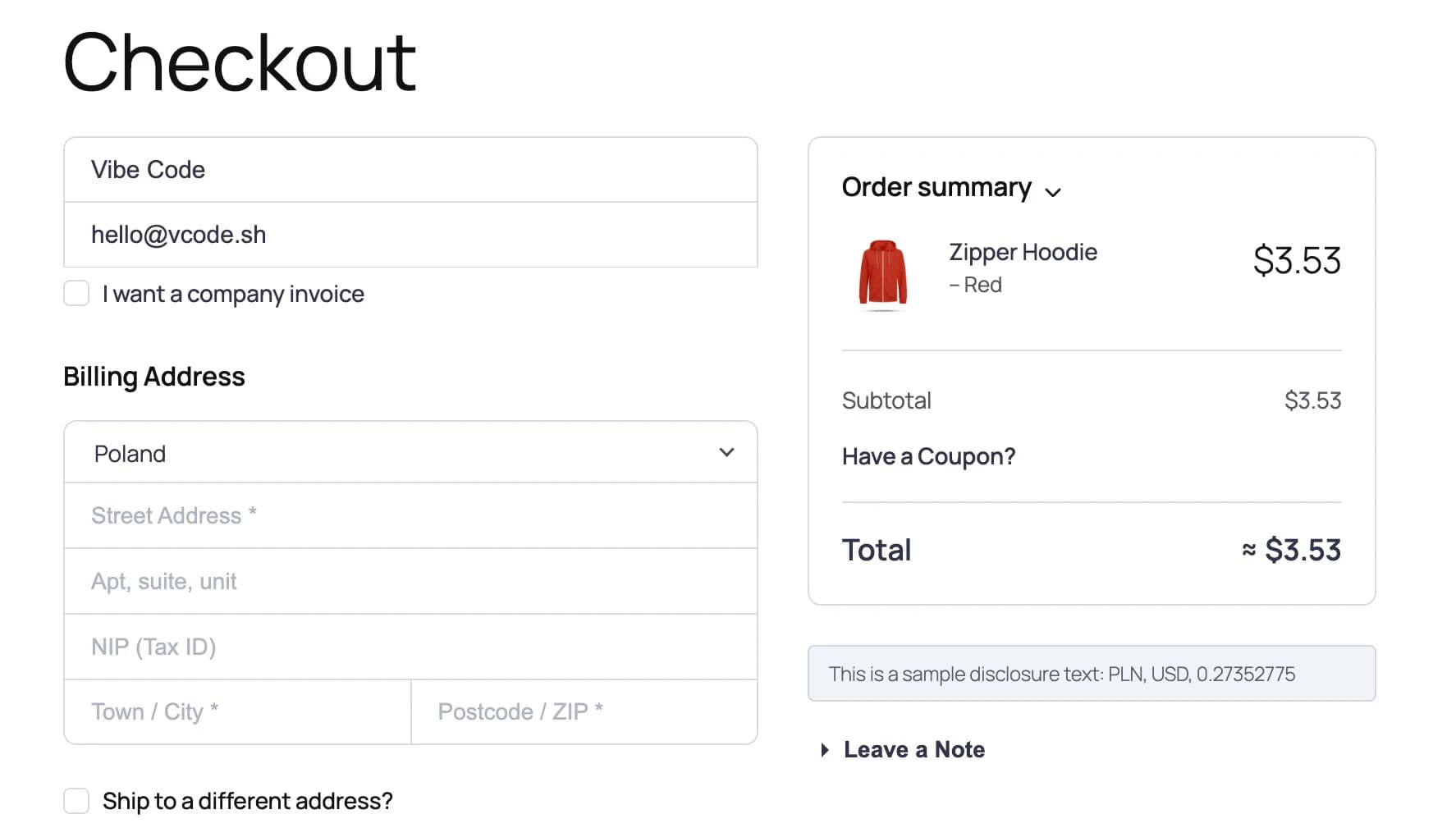
Notice the ≈ before the total — that's the plugin reminding the customer this amount is approximate. The actual charge happens in your base currency.
Where It Shows Up
The disclosure appears in three places automatically:
- Below the checkout order summary — right before the payment button
- Inside the cart drawer — after the total
- On the cart page — after the cart total
Customise the Message
You can write your own disclosure text in the Checkout settings. Use these placeholders:
| Placeholder | Becomes | Example |
|---|---|---|
{base_currency} | Your store's charge currency | PLN |
{display_currency} | What the visitor is viewing | USD |
{rate} | The current exchange rate | 0.27352775 |
For example:
Prices shown in {display_currency} are approximate.
Your payment will be processed in {base_currency} at the current rate of {rate}.
If you leave the text blank, a sensible default kicks in: "Prices shown in USD are approximate. You will be charged in PLN." — always clear, always honest.
When It Doesn't Appear
The notice hides itself when there's nothing to disclose:
- The visitor is already browsing in your base currency (no conversion happening)
- You've turned disclosure off in settings
- The plugin is disabled
Order Snapshots
Exchange rates change. The EUR/USD rate today won't be the same in three weeks. So when a customer pays, the plugin saves a snapshot to the order — which currency they were viewing, what your base currency was, and the exact exchange rate at that moment.
This means you can always answer:
- "What rate was I charged at?" — customer support sorted
- "What did the customer actually see?" — dispute resolution sorted
- "What was the FX rate on this order?" — reporting and compliance sorted
The final display code travels inside FluentCart's own regular or modal checkout form. The server validates that code and resolves the rate itself, so a stale edge cookie cannot rewrite the order and the browser cannot submit a made-up price. If the customer was browsing in the base currency, the order records that base code as the capture marker and stores no unnecessary FX rate.
Slow Recovery Does Not Blank the Storefront
On an edge-cached page, the browser may need a fresh context request before it knows which currency belongs to this visitor. Existing prices remain visible while that request is pending. Once the answer arrives, a short projection shield applies the new currency as one update; a 2-second safety timeout still releases it if projection itself fails. A slow edge is annoying enough without replacing every price with white space for dramatic effect.
For Your Own Theme or Plugin
Want to convert a price in your own custom template? Add one attribute:
<span data-fchub-mc-base="99.99">$99.99</span>The conversion engine picks it up automatically and rewrites the content with the converted amount. No custom JavaScript or API call is needed — just add the attribute and the existing storefront runtime does the work.
Technical Details
The projection engine targets all standard FluentCart price elements via CSS classes (.fct-item-price, .fct-compare-price, .fct-cart-item-price, .fct_summary_value, etc.) and data attributes ([data-fluent-cart-cart-list-item-price], [data-fluent-cart-cart-total-price], etc.).
A 50ms-debounced MutationObserver watches price surfaces for DOM changes, plus the engine listens to FluentCart events: fluentCartFragmentsReplaced, fluentCartNotifySummaryViewUpdated, fluentCartNotifyCartDrawerItemChanged. The observer only attaches while a conversion is active, and mutations that touch no price surface are ignored.
The disclosure is injected client-side only. The plugin deliberately does not touch FluentCart's checkout patch fragments: that array is a sequential list the checkout JS iterates with forEach, and any string-keyed addition turns it into an object and breaks checkout updates.
The regular and modal forms carry only _fchub_mc_display_currency. The server
validates it during fluent_cart/checkout/prepare_other_data, computes the
usable rate, and writes the snapshot meta keys:
_fchub_mc_display_currency, _fchub_mc_base_currency, _fchub_mc_rate,
_fchub_mc_disclosure_version.
See the Developer Reference for the full API, hooks, and schema.
Exchange Rates
How FCHub Multi-Currency fetches, stores, caches, and manages exchange rates from multiple providers with automatic refresh and staleness detection.
FluentCRM Integration
Automatically tag contacts by currency, sync custom fields on every switch and purchase, and segment your audience by what money they think in.