
Cloudflare Stream Setup
Cloudflare Stream configuration guide. Account IDs, API tokens, webhook secrets. The works. More steps than Bunny.net, but it works.
Maintenance suspended indefinitely
Cloudflare Stream is the streaming provider for people who already use Cloudflare for everything else. Or for people who want globally distributed CDN by default and don't mind API token configuration that feels like solving a puzzle.
Here's what you're signing up for: Copy Account ID from one page. Generate API token from another. Paste both into FCHub Stream. Test connection. Hope it works. It usually does.
Not as cheap as Bunny.net. Not as simple either. But if you're already in Cloudflare's ecosystem, this makes sense. If you're not, maybe reconsider.
Before You Start
Prerequisites
- Cloudflare account with Stream enabled (not all plans have it)
- Payment method on file (Stream isn't free, shockingly)
- WordPress admin access to configure FCHub Stream
- 15 minutes of your life you won't get back
Don't have a Cloudflare account? Sign up here. Already have one but Stream isn't showing up? Check your plan. Stream isn't available on every tier.
What You're Getting
Pricing (as of 2025):
- $5 per 1,000 minutes stored
- $1 per 1,000 minutes delivered
Translation for normal humans:
- 100 videos at 5 minutes each = 500 minutes = $2.50/month storage
- 1,000 views of those videos = 500 minutes delivered = $0.50/month delivery
- Total: ~$3/month for small community
Scales up from there. Do your own math. Cloudflare has a pricing calculator if you want precision.
What makes Cloudflare worth the extra cost:
- Global CDN included (videos load fast everywhere)
- Webhook callbacks that actually work (instant status updates)
- Enterprise-grade infrastructure (doesn't go down when traffic spikes)
- Direct Creator Uploads if you need that (you probably don't)
What makes Cloudflare annoying:
- More expensive than Bunny.net for most use cases
- API token creation requires patience
- Customer subdomain is shown but not actually used (thanks for the confusion, Cloudflare)
Pick Cloudflare if: you're already using them, you value reliability over cost, or someone else is paying.
Find Your Account ID
Cloudflare makes this surprisingly easy. For once.
- Log into Cloudflare Dashboard
- Click Stream in the left sidebar
- Pick your plan & pay
- Look at the top-right corner under "Account details"
- Copy your Account ID and Customer subdomain
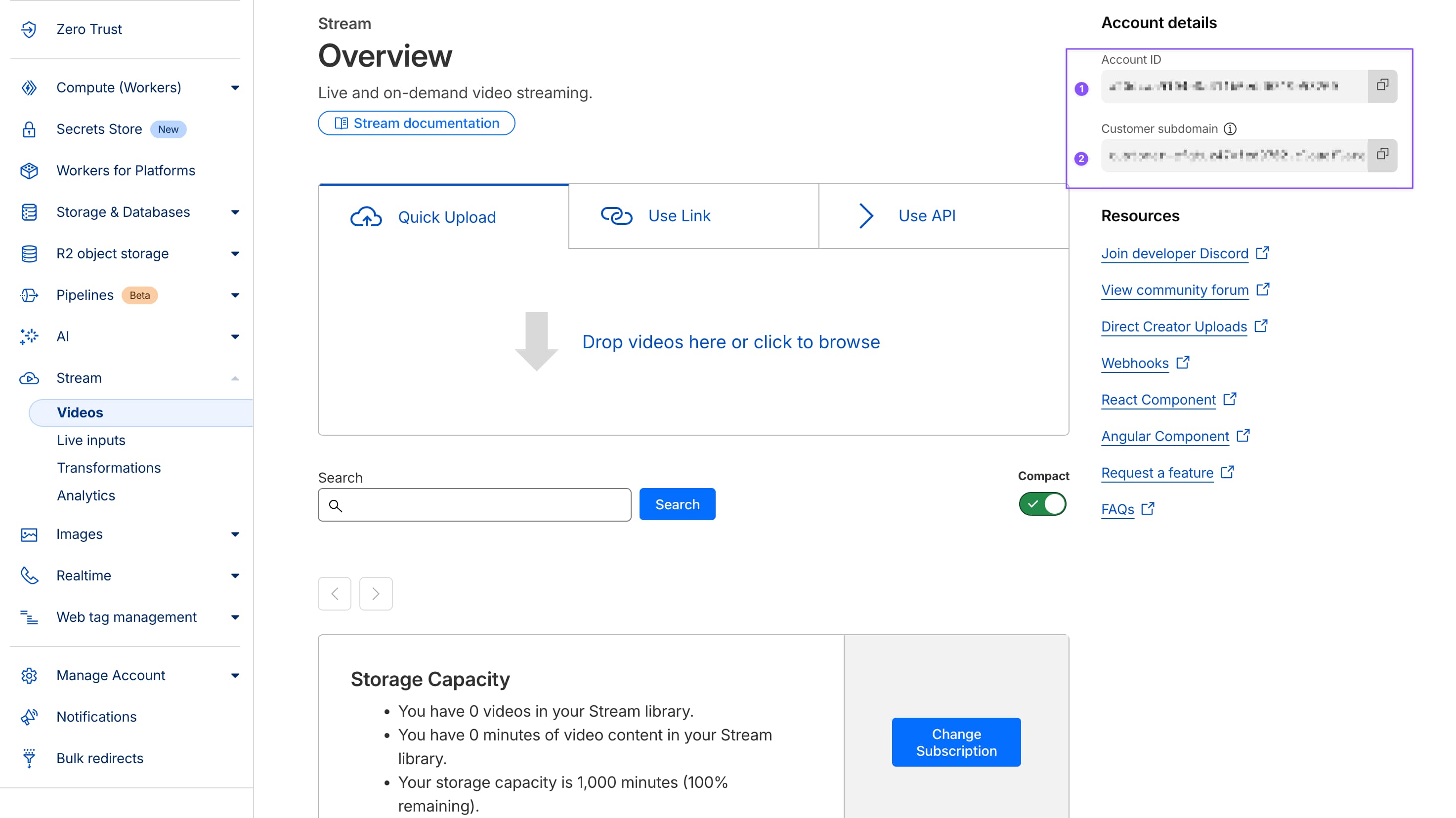
What is Account ID?
It's a hexadecimal string that looks like a20dcaa5104t8a211b0edd6519e53260. That's your Cloudflare account identifier. Not your Stream-specific ID. Your entire account. Because Cloudflare believes in reusing identifiers.
Customer subdomain:
You'll see this too. It looks like customer-xxxxxx.cloudflarestream.com. You don't need it for FCHub Stream. It uses Account ID instead. Cloudflare shows it anyway. Ignore it.
Save your these somewhere. Text file. Password manager. Sticky note. Whatever works. You'll paste it into FCHub Stream settings in a minute.
Create API Token
This is where Cloudflare's love for security theater begins. You need an API token with Stream permissions. Not your Global API Key (that's too powerful). Not a generic token (that won't work). A Stream-specific token with exactly the right permissions.
Cloudflare doesn't have a template for Stream (shocking, I know). You'll create a custom token. It's not hard. Just tedious.
Generate the Token
Time to create an API token. Cloudflare's dashboard is confusing. I know. But you need to do this. Here's how:
- In Cloudflare dashboard, go to My Profile (click your profile icon or find in the left sidebar)
- Navigate to API Tokens tab
- Click Create Token button
- Find the Create Custom Token
- Click Get Started
- Give a Token name (call it whatever you want - "fchub-stream" works, "my-video-plugin" also works, I don't care)
- Permissions - you need to add two permissions for Account (this is where Cloudflare's UI gets confusing, but stick with me):
- Click the permission dropdown, select Account → Stream → Read (this lets plugin check video status)
- Add another permission: Account → Stream → Edit (this lets plugin upload videos)
- Yes, you need both. No, I can't make Cloudflare's permission system simpler. Just add both.
- Then click Continue to summary
- Verify if all is ok (or don't, I'm not your boss)
- Click Create Token
Make sure you add both permissions (Read AND Edit). Missing one means uploads fail or status checks fail. I've seen this happen. Don't skip permissions. Cloudflare's UI makes it easy to miss one. Be thorough.
- Copy your API token immediately
Cloudflare shows the token exactly once. If you close this page without copying it, you're generating a new one. Copy it. Paste it somewhere safe. Don't trust your memory.
Your token looks like a long string of random characters: AbCd1234_EfGh5678-IjKl9012. Save it. You'll paste it into FCHub Stream next.
Configure FCHub Stream
Time to connect everything. You have Account ID. You have API token. Now paste them into WordPress.
Open FCHub Stream Settings
- Go to WordPress Admin → FCHub Stream → Settings
- Click Stream Configuration card (or tab)
- Select Cloudflare Stream provider
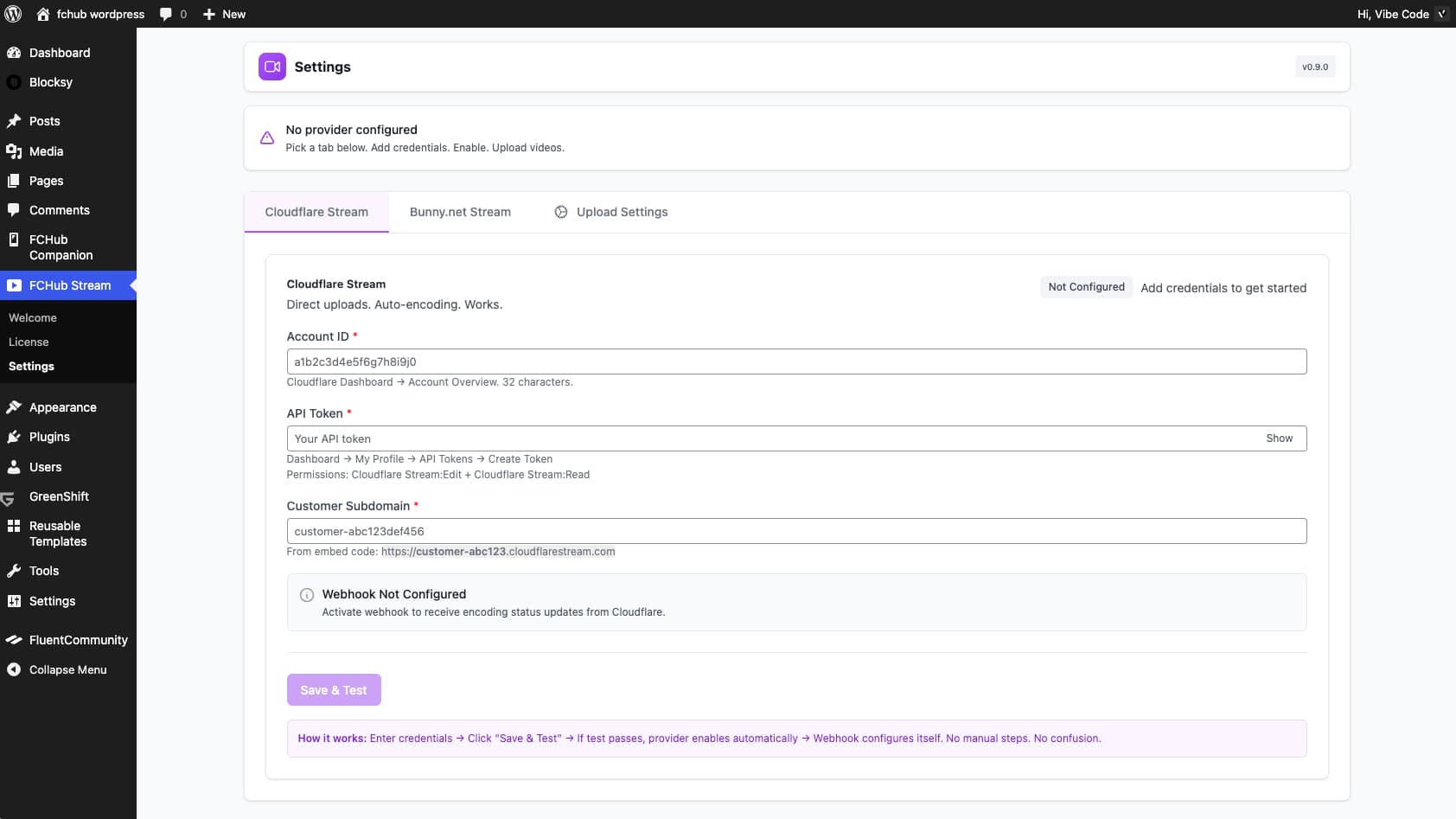
Enter Your Credentials
Account ID field:
- Paste the Account ID you copied from Cloudflare Stream dashboard
- Format: 32-character hexadecimal string
- Example:
a20dcaa9104e8a411b0edd6519e53260
API Token field:
- Paste the API token you just created
- Format: Random alphanumeric string with underscores and hyphens
- Shows as masked characters (
••••••••) after you enter it - Don't worry, that's normal security behavior
If you paste and see your token in plain text initially, that's fine. It gets masked after you move to another field or save. FCHub Stream encrypts API credentials in the database. Not stored in plain text like it's 2010.
Customer Subdomain field:
- Paste the Customer Subdomain you copied from Cloudflare Stream dashboard
- Format:
customer-xxxxxx.cloudflarestream.com - This is required for Cloudflare Stream API calls
- You copied this earlier when getting Account ID
Save & Test
After entering all credentials:
- Click Save & Test button
- This saves your credentials and tests the connection automatically
- If test succeeds, you'll see a green success message
- If test fails, check the error message and fix your credentials
What the test checks:
- Account ID is valid
- API token works
- Customer Subdomain is correct
- Token has necessary permissions (Read and Edit)
- Your server can reach Cloudflare's API
Activate Webhook
After Save & Test succeeds:
- Click Activate Webhook button
- This sets up webhook endpoint for Cloudflare Stream
- Webhooks notify your site when video processing completes (faster than polling)
- If webhook activation succeeds, you'll see a confirmation message
What webhooks do:
- Cloudflare sends notifications when videos finish encoding
- Status updates happen instantly (no 30-second polling delay)
- Reduces API calls (saves rate limits)
- Better user experience (videos appear ready faster)
Webhooks require SSL/HTTPS on your site. If your site doesn't have SSL, webhook activation will fail. Most hosting has SSL by default. If yours doesn't, fix that first. It's 2025.
Enable Provider
After Save & Test succeeds, you need to enable Cloudflare Stream as your active provider:
- Toggle the Status switch to Enabled
- This activates Cloudflare Stream as your active provider
- If you had another provider enabled, it gets disabled automatically
- Only one provider can be active at a time (by design, not limitation)
Once enabled, Cloudflare Stream is your active provider. Video uploads will go to Cloudflare Stream. That's it.
If Save & Test Fails
You'll see a red error message. Common causes:
"Invalid Account ID"
- You copied the wrong string (maybe Customer subdomain instead?)
- Extra spaces before/after the ID (copy-paste strikes again)
- Check Cloudflare dashboard, copy Account ID again
"Invalid API Token"
- Token was copied wrong (missing characters)
- Token was revoked or expired
- Go back to Cloudflare, generate new token
"Insufficient permissions"
- Token doesn't have Stream:Read and Stream:Edit permissions
- Delete token, create new custom token with both permissions (Read AND Edit)
"Connection timeout" or "Could not reach Cloudflare API"
- Your server's firewall blocks outbound HTTPS requests
- DNS resolution issues (rare but possible)
- Check with your hosting provider
"Account not found"
- Account ID belongs to different Cloudflare account than your API token
- Verify you're using credentials from the same account
If connection test keeps failing after fixing credentials, check if your hosting provider blocks outbound API requests. Some shared hosting does this. Contact support. If they can't help, switch hosting or switch to Bunny.net (Bunny's API is more lenient).
Test Video Upload
Configuration is done. Now verify it actually works by uploading a test video.
Upload Test Video
- Go to your FluentCommunity (frontend, not admin)
- Create a new post
- Click the video upload button (should appear in post editor)
- Select a short test video (under 50MB recommended for first test)
- Upload starts immediately
What should happen:
- Progress bar shows upload percentage
- Upload completes (file goes to Cloudflare, not WordPress server)
- Status changes to "Processing..." (Cloudflare is transcoding)
- After 30-60 seconds, status changes to from "Encoding" to "Ready"
- Video player appears in post preview
If Upload Works
Congratulations. Cloudflare Stream is configured correctly. Videos upload. Videos transcode. Videos play. You're done.
If Upload Fails
Something's misconfigured. Common issues:
Upload button doesn't appear:
- FCHub Stream isn't enabled in Settings → Upload Settings
- FluentCommunity isn't active
- User doesn't have permission to upload videos
- JavaScript error (check browser console with F12)
Upload fails immediately:
- API credentials are wrong (test connection again)
- File exceeds max size limit (check Upload Settings)
- File format not allowed (check allowed formats)
Upload completes but stays "Processing" forever:
- Webhook isn't configured and polling isn't working
- Cloudflare processing actually failed (check Cloudflare Stream dashboard)
- Network issue between WordPress and Cloudflare API
Video player shows error:
- Video processing failed on Cloudflare's side (check their status page)
- Embed URL is malformed (rare, but report if it happens)
Check Troubleshooting if you're stuck.
When to Choose Cloudflare Stream
Choose Cloudflare If:
You're already using Cloudflare
- Already have account, billing set up, familiar with dashboard
- Adding Stream is one more service in ecosystem you already use
You want global CDN by default
- Videos load fast everywhere (Cloudflare has edge locations worldwide)
- Adaptive bitrate streaming optimized for every region
You value webhook reliability
- Cloudflare's webhooks work consistently
- Instant status updates when processing completes
You need enterprise reliability
- Uptime is critical for your community
- Can't tolerate streaming provider outages
Budget isn't primary concern
- Cloudflare costs more than Bunny.net
- But infrastructure quality and CDN performance justify cost
Skip Cloudflare If:
You want cheaper pricing
- Bunny.net is significantly cheaper for most use cases
- Unless you're delivering huge volumes, Bunny wins on cost
You don't want complex setup
- Cloudflare requires Account ID + API token creation
- Bunny.net is simpler (just API key + Library ID)
You're not already in Cloudflare ecosystem
- Creating Cloudflare account just for Stream is overkill
- Bunny.net is standalone service, no ecosystem lock-in
You need regional pricing
- Cloudflare has flat global pricing
- Bunny.net has regional pricing (cheaper in some regions)
Cost Breakdown
Real-World Pricing Examples
Small community (50 videos/month, 5 min average, 1000 total views):
- Storage: 250 minutes = $1.25/month
- Delivery: 5,000 minutes watched = $5/month
- Total: $6.25/month
Medium community (200 videos/month, 7 min average, 5000 total views):
- Storage: 1,400 minutes = $7/month
- Delivery: 35,000 minutes watched = $35/month
- Total: $42/month
Large community (500 videos/month, 10 min average, 20,000 total views):
- Storage: 5,000 minutes = $25/month
- Delivery: 200,000 minutes watched = $200/month
- Total: $225/month
Compare to hosting video yourself:
- Server storage: $50-200/month (depends on volume)
- CDN bandwidth: $100-500/month
- Transcoding infrastructure: $200-1000/month
- Your time maintaining it: priceless (and annoying)
Cloudflare Stream costs more than Bunny.net. But costs way less than self-hosting. And you don't spend weekends maintaining FFmpeg clusters.
Math checks out if you value time and reliability.
Common Issues
Connection Test Fails
Check:
- Account ID is exactly 32 characters (no spaces before/after)
- API token copied correctly (Cloudflare shows it only once)
- Token has Stream:Read and Stream:Edit permissions
- Your server's firewall allows outbound HTTPS to Cloudflare
Webhook Not Working
Check:
- Your site uses HTTPS (SSL certificate valid)
- Webhook URL is correct:
https://yourdomain.com/wp-json/fchub-stream/v1/webhooks/cloudflare - Webhook secret matches in both FCHub Stream and Cloudflare dashboard
- Cloudflare can reach your server (no IP whitelist blocking them)
Video Stuck Processing
Check:
- Cloudflare status page (maybe they're having issues)
- Video actually processing in Cloudflare dashboard (Stream → Videos)
- Webhook configured or polling enabled
- Not a 4K 60fps 2-hour video (those take time to transcode)
Upload Fails with "Forbidden"
Check:
- API token hasn't expired
- Token wasn't revoked in Cloudflare dashboard
- Account still has Stream enabled (some Cloudflare plans don't include it)
Still Stuck?
If this guide didn't solve your problem:
- Check troubleshooting guide → Common Issues
- Verify Cloudflare status → status.cloudflare.com
- Test API credentials manually → Use Cloudflare's API docs to verify token works
- Check browser console → F12 → Console tab (JavaScript errors show here)
- Review WordPress error logs → See if PHP errors explain upload failures
Need help?
Include in your report:
- WordPress version
- FluentCommunity version
- FCHub Stream version
- Exact error message
- Screenshots if relevant
- What you've already tried
The more details you provide, the faster it gets fixed. Or the faster you get told it's a Cloudflare issue, not an FCHub issue. Either way, clarity helps.