
Bunny.net Setup
Bunny.net Stream configuration. Cheaper than Cloudflare. Simpler setup. Less confusing API tokens. Still works.
Maintenance suspended indefinitely
Bunny.net Stream is the streaming provider for people who want cheaper pricing. Or for people who aren't already using Cloudflare for everything else.
Here's what you're signing up for: Create a Stream library. Copy API key. Copy Library ID. Copy hostname. Paste into FCHub Stream. Test connection. Hope it works. It usually does.
Cheaper than Cloudflare. Simpler setup. Less API token drama. Fewer features. But if you're already in Cloudflare's ecosystem, maybe stick with Cloudflare. If you're not, Bunny.net makes sense.
Before You Start
Prerequisites
- Bunny.net account with Stream enabled (most plans have it)
- Payment method on file (Stream isn't free, shockingly)
- WordPress admin access to configure FCHub Stream
- 10 minutes of your life (faster than Cloudflare setup, I timed it)
Don't have a Bunny.net account? Sign up here.
Step 1: Create a Stream Library
Bunny.net calls it a "library". I call it a container for videos. Same thing. Here's how to create one:
- Log into Bunny.net dashboard
- Go to Stream in the sidebar (it's there, you'll find it)
- Click Add Stream Library (big button, hard to miss)
- Give it a name (call it whatever you want - "my-videos" works, "stream-library-1" also works, I don't care)
- Choose your storage region (start easy, you can increase locations but not remove, so be smart - Bunny's UI is less confusing than Cloudflare's, but still)
- Click Add Library
Your library is created. Bunny.net is faster than Cloudflare at this. I've timed it. Now grab its credentials.
Step 2: Get Your Library Details
On your Stream library page, you'll see two things you need. Bunny.net makes this easier than Cloudflare. Less clicking. More straightforward. Here's what to grab:
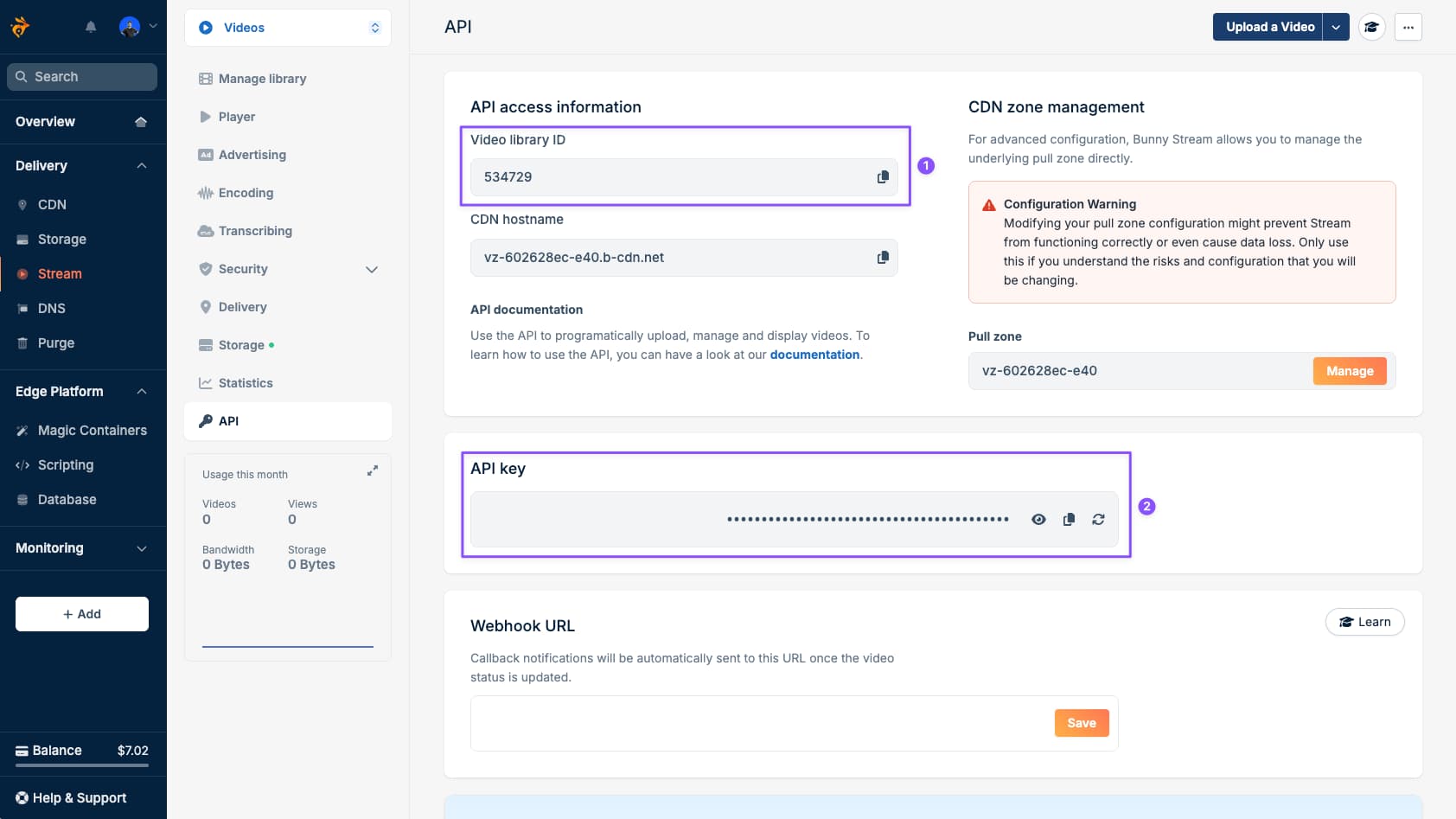
Library ID
A number. Usually looks like 12345. That's it. Just a number. Copy it. Paste it somewhere safe. You'll need it. Don't lose it. I've seen people lose it. Don't be that person.
API Key
Click Show next to the API key field. Copy it. Bunny.net shows it in plain text. That's fine. Copy it. Don't lose it. You'll need it. This key has full account access. Keep it safe. Don't paste it in public places. Don't commit it to git. Don't share it with strangers. Common sense stuff, but people forget.
You need both for the next step. Yes, both. Don't skip any. I've seen people skip the Library ID. Don't be that person.
Step 3: Configure FCHub Stream
Time to paste credentials into WordPress. This is the easy part. Here's how:
- Go to WordPress Admin → FCHub Stream → Settings
- Click Bunny.net Stream tab (it's there, you'll find it)
- Enter your Library ID (the number you copied earlier - paste it, don't type it)
- Enter your API Key (paste it, don't type it - copy-paste errors are real, I've done it)
- Click Save & Test button
What Save & Test does:
- Saves your credentials (encrypted in database, not plaintext like it's 2010)
- Tests connection to Bunny.net API (I ping their API to see if it works)
- Verifies API key works (checks if it's real, not fake)
- Checks if library ID is valid (makes sure library exists)
If test succeeds, you'll see a green success message. Congrats. You did it. Move to next step.
If test fails, check the error message. Common issues:
- Wrong API key (copy-paste errors happen - I've done it, you'll do it too)
- Wrong Library ID (maybe you copied something else instead? Check again)
- Network issues (your server can't reach Bunny.net API - firewall blocking HTTPS?)
Fix credentials. Try again. It usually works on second try. If it doesn't, check Troubleshooting.
Step 4: Enable Provider
After Save & Test succeeds:
- Click Enabled button (it's there, you'll find it)
- This activates Bunny.net Stream as your active provider
- If you had another provider enabled, it gets disabled automatically (one at a time, that's the rule)
- Only one provider can be active at a time (by design, not limitation - I built it that way)
Once enabled, Bunny.net Stream is your active provider. Video uploads will go to Bunny.net. That's it. No more configuration needed. You're done with setup.
Step 5: Test Video Upload
Configuration is done. Now verify it actually works by uploading a test video. This is the moment of truth. Or the moment you realize you pasted the wrong API key. Either way.
- Go to your FluentCommunity (frontend - yes, the actual site, not admin)
- Create a new post (like normal, nothing fancy)
- Look for the video upload button (should appear in post editor - I inject it there)
- Click it or drag & drop a video file (desktop users get drag & drop, mobile users get button)
- Wait for upload to complete (progress bar shows status - I built this, it's accurate)
- Wait for encoding (Bunny.net processes video - I don't control this, they do)
- Video player appears automatically when ready (no refresh needed, no manual iframe copy-paste)
What should happen:
- Upload completes (file goes to Bunny.net, not WordPress server - no PHP upload limits hit)
- Status changes to "Processing..." (Bunny.net is transcoding - they handle this, not me)
- After 30-60 seconds, status changes from "Encoding" to "Ready" (depends on video length)
- Video player appears in post preview (responsive, mobile-friendly, works everywhere)
If it works, congratulations. You're done. Bunny.net Stream is configured. Videos upload. Videos play. Move on with your life. I'm proud of you. Seriously. You did it.
If it doesn't work, check Troubleshooting. Common issues:
- Upload fails immediately → Check API credentials (probably wrong, I've done it)
- Upload stuck at 0% → Browser JavaScript error, check console (F12 → Console tab - I don't control browsers)
- Upload completes but stays "processing" forever → Bunny.net processing actually failed (check Bunny.net dashboard - not my problem, theirs)
What You're Getting
Pricing (as of 2025):
- $0.01 per GB stored ($10 per TB)
- $0.005 per GB delivered ($5 per TB for high-volume)
- Regional pricing: $0.01/GB (EU/NA) to $0.06/GB (Africa/ME)
Translation for normal humans:
- 100 videos at 500MB each = 50GB = $0.50/month storage
- 1,000 views of those videos = 50GB delivered = $0.25/month delivery
- Total: ~$0.75/month for small community
Generally cheaper than Cloudflare for most use cases. Math not guaranteed. Do your own calculations. Bunny.net has a pricing calculator if you want precision. I've done the math. It's cheaper. That's why people use it.
What makes Bunny.net worth it:
- Cheaper pricing (especially for storage-heavy use cases - if you store a lot of videos, Bunny.net wins)
- Simpler API (less confusing than Cloudflare's token system - no custom token creation drama)
- Good performance (not Cloudflare-level global CDN, but good enough for most communities)
- Straightforward dashboard (less clicking, more doing - Bunny.net's UI is simpler)
What you're giving up:
- Global CDN by default (Cloudflare wins here - Bunny.net is good, but Cloudflare's CDN is global by default)
- Webhook reliability (Cloudflare's webhooks are more reliable - Bunny.net has webhooks, but Cloudflare's are better)
Pick your priorities. Price? Bunny.net. Reliability? Cloudflare. Both work. I've tested both. Can't decide? Start with Bunny.net. It's cheaper. Switch to Cloudflare later if needed. Configuration is stored separately for both providers. I built it that way.
Need Help?
If these instructions didn't work or something's unclear (it happens, I've been there):
- Check troubleshooting guide → Common Issues (I wrote this, it's helpful)
- Check browser console for JavaScript errors (F12 → Console tab - I don't control browsers, but errors show there)
- Verify Bunny.net library exists (check Bunny.net dashboard - maybe you deleted it?)
- Test with different video file (maybe your test file is corrupted - I've seen it happen)
If nothing helps, get support:
Need help?
Include in your report:
- WordPress version (I need this)
- FluentCommunity version (I need this too)
- FCHub Stream version (check admin page)
- Bunny.net library ID (not the API key, just the ID - I don't need your keys)
- Error messages (exact text - copy-paste it, don't paraphrase)
- Browser console output (F12 → Console - screenshot or copy-paste)
The more details you provide, the faster it gets fixed. Or ignored. Depends on coffee levels that week. I'm honest about this. Coffee helps.
Cloudflare Stream Setup
Cloudflare Stream configuration guide. Account IDs, API tokens, webhook secrets. The works. More steps than Bunny.net, but it works.
Troubleshooting
Videos not uploading? Player broken? Webhook signature failed? Welcome to the troubleshooting page nobody wanted to write but everyone needs.